Mobile
Clear Cache on Android
- Long press app icon
- Select the little i in the circle
- Scroll to storage and select it
- Select clear cache and clear data
- Log in
Complete an opportunity
- Select Activity List
- Find the reps name
Tap Plus (+) sign - Click on reps name
- Select the opportunity type: Walk-in, Appointment, Delivery (Vary based on location)
- Select visit type (if applicable)
- Answer all Yes/No questions ie: Appt Set, Test Drive, Sold (Locations vary)
- Answer any additional questions ie: Manager Intro
- Tap the Activity Button (circle arrow) to confirm
Remove a rep with opportunity
- The rep in the designated position will watch the rep in the top position and as soon the rep has an opportunity, remove them with a walk-in.
- Click on the reps name, then select opportunity type (Walk-in) then OKAY
Mobile Token Issue
The mobile token to log in is sent via SMS for security reasons.
If you do not receive the token please check the following:
- Verify with a manager that your mobile number is correct
- Verify you are receiving SMS messages from Nextup
- Be sure your location SMS number is not blocked locally on your device
- If so, unblock and try again
- If none of the above are successful contact support and they can provide your token to login.
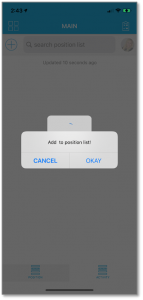
Adding a rep to the list
- From home screen, tap the “+” plus sign (top left)
- Select OKAY
The power rotation clock will only appear if there is more than 1 rep on the list
The power rotation clock shows the time the rep will rotate to the bottom of the list
Get started with these tools below.
Contact
Connect with
support
support
Process Help
Sales
Connect with Support
888.982.8891
M-F: 7AM to 7PM PST
SAT: 7AM to 3PM PST
SAT: 7AM to 3PM PST